How to broadcast remotely using BUTT
You have a radio show on FanonRadio, it's time to broadcast!
What you'll need
- Radio Host account credentials (the username and password)
- a device running Linux, Windows or MacOS
- a microphone (can be built in your device)
- earphones/headphones
- internet connection
- BUTT↗ (Broadcast Using This Tool) software
- Loopback↗ !macOS only
Setting up
Open up BUTT and go to:
Settings > Main > Server Settings > Server > ADD
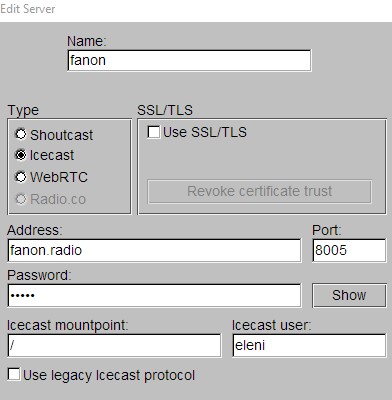
Name: a name for the server, only you can see this!
Type: Icecast
Address: fanon.radio
Port: 8005
Password: your DJ account password
Icecast mountpoint: /
Icecast user: your DJ account username
No need to tick "Use SSL/TLS"
Finally, click save to the apply the configuration.
Mixing inputs
Figuring this step out can arguably be a frustrating process. Make sure you've taken your time looking into it before your show!
You most probably want to broadcast bouth your voice and some audio from your device (whether that is music, a video snippet, a recording or a discussion with someone on an audio call)
These needs can get translated into two different inputs:
- a mic
- the audio of your pc/laptop
Under Settings > Audio is where you configure the Audio Devices, one primary and one secondary. The priority is not of much importance.
Windows
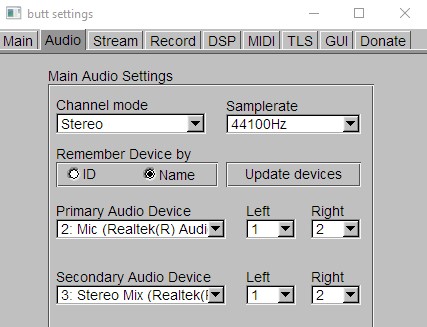
In my own Windows configuration, as you can see in the screenshot, I picked the laptop Mic for the primary and Stereo Mix / (or Loopback, both work). Play around with them, see how the audio bars on the main butt window react. Count to four, tap the mic. Do they move? Go green?
MacOS
As mentioned above, you need to download an extra software called "Loopback"
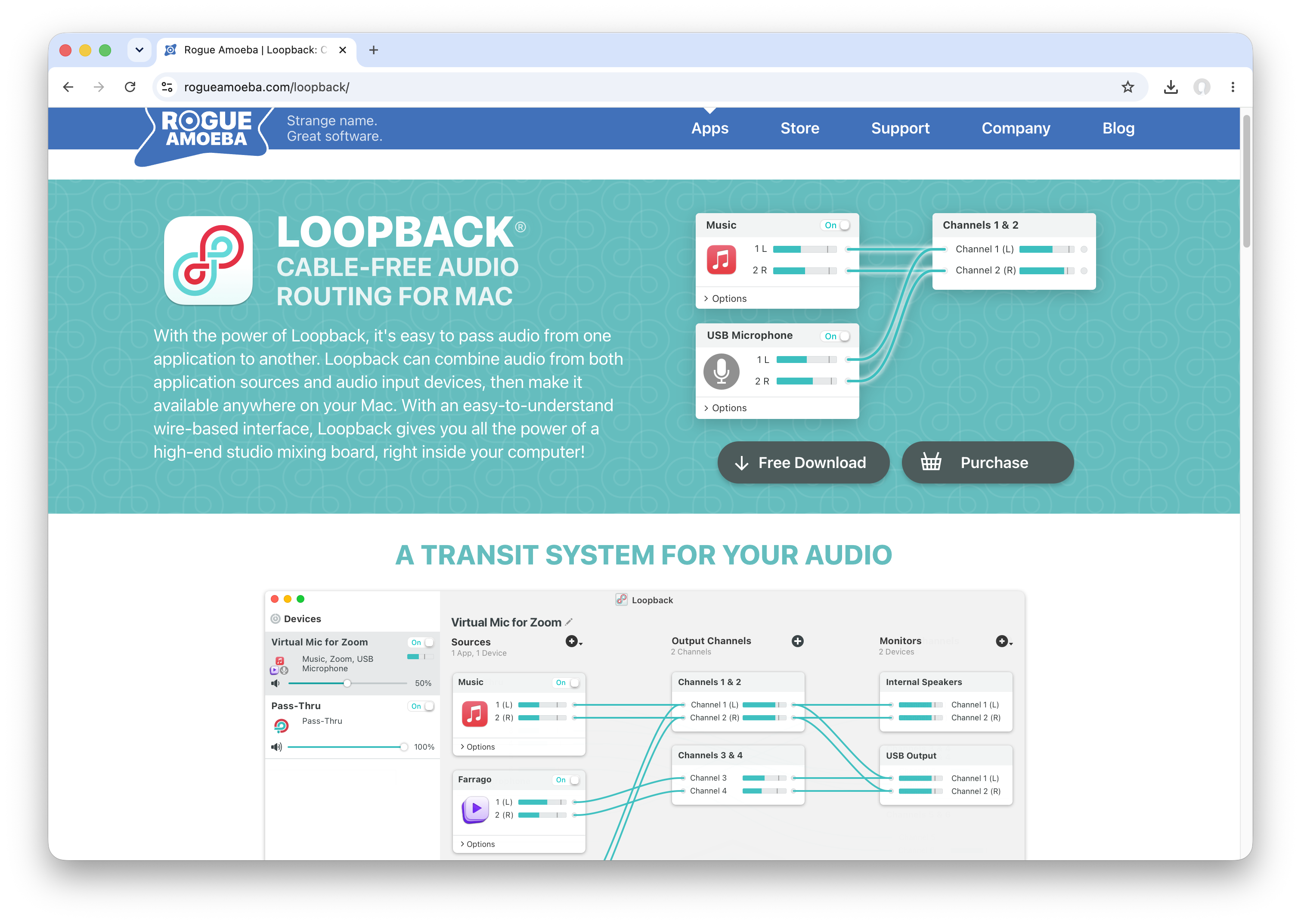
It is like a virtual audio driver, allowing you to broadcast the audio of any running software. This way, you can have two seperate audio inputs.
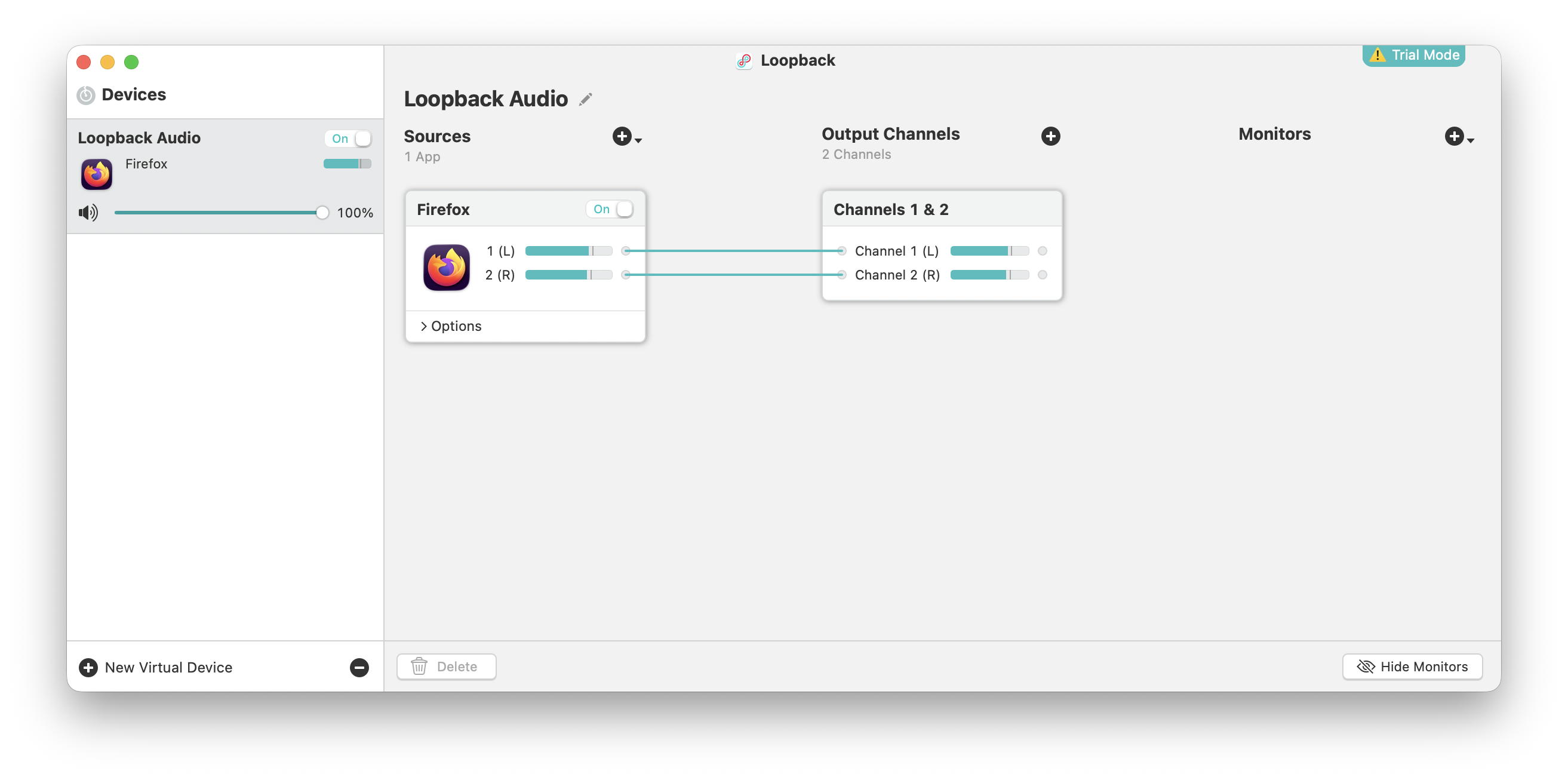
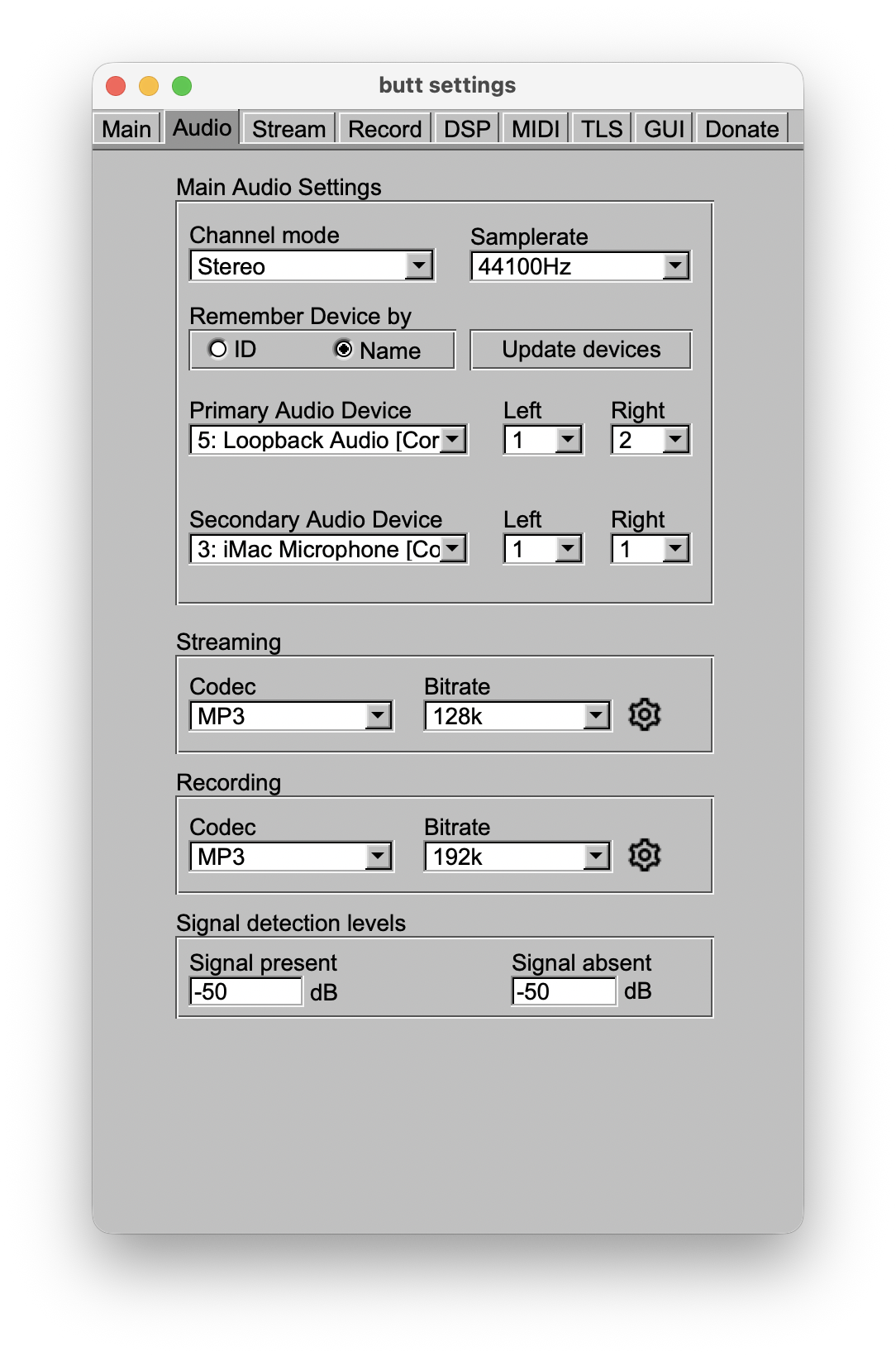
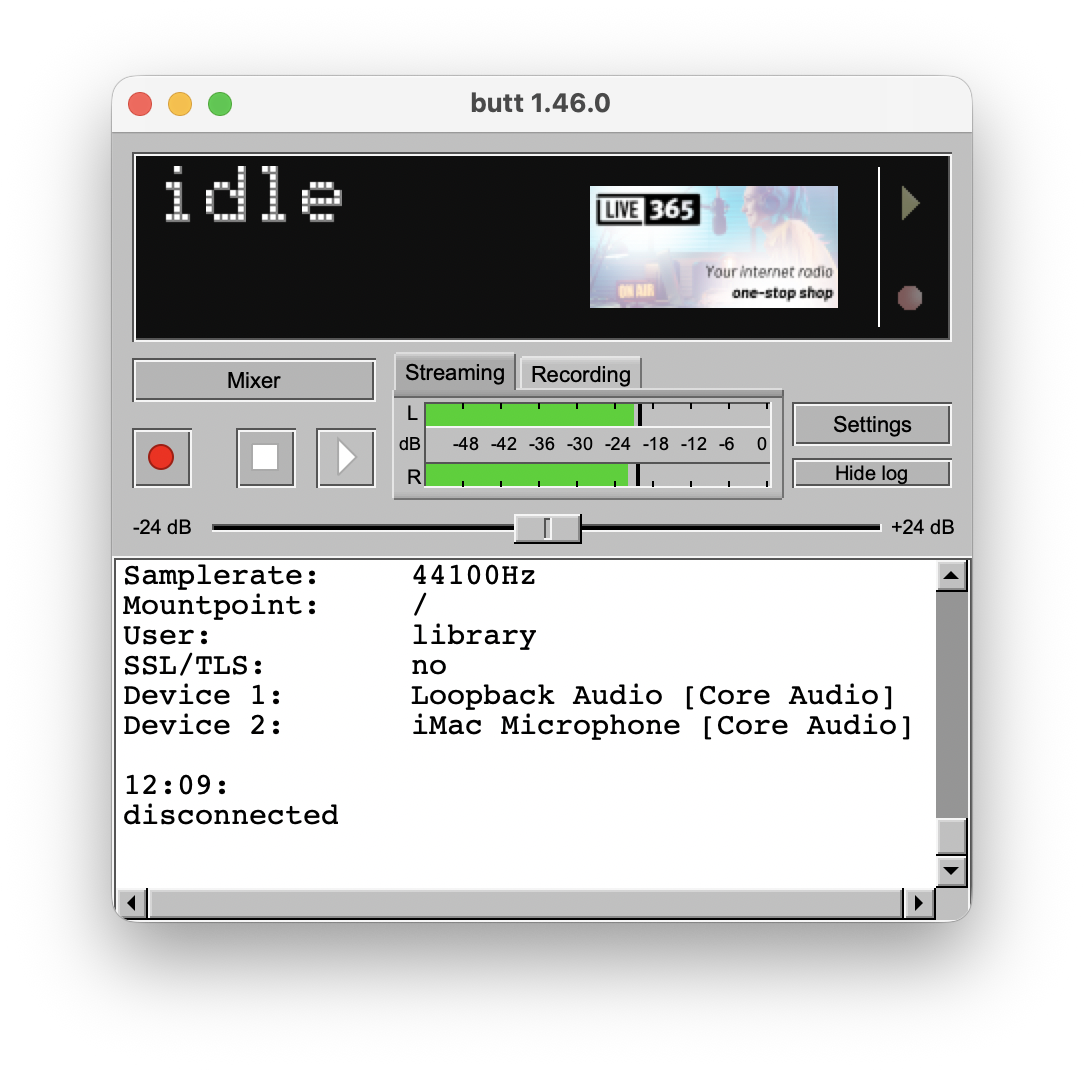
Check if the inputs work; count to four, tap the mic. Do they audio bars on the main window move? Are they going green?
Mixer
You can control the volume of your audio devices using the mixer.
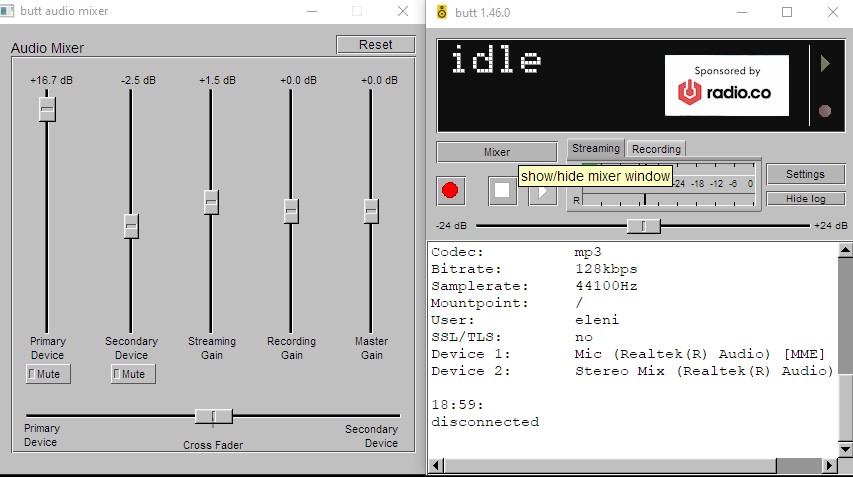
Play around with the gain to find the right balance for your show! You can control the volume of each audio source seperately.
The bottom, horizontal knob if a good way to crossfade between the music and your mic, without messing with your volume presets
You can check the volume and quality of your audio by clicking the round red button to record and listen back.
Finally, go Live!
Go to Stream > Update song name manually and put the title of your show.
Make sure to click OK!
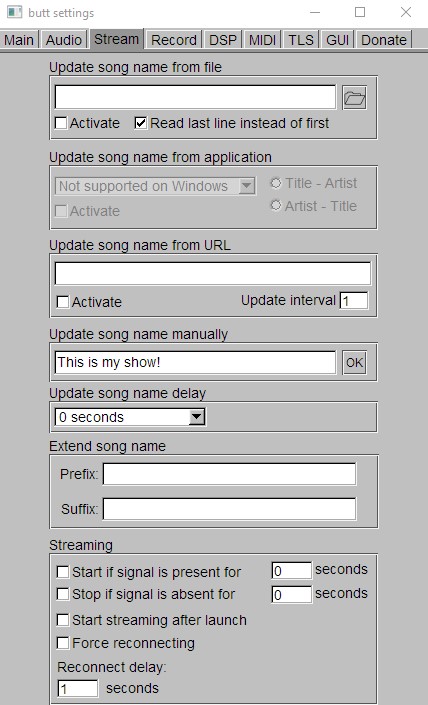
Once you do that, when you go live the audio player will show both the title of your show and the correct visual.
This is the only step you need to do each time you go live. The server settings remain.
If you are scheduled, you can go live by clicking on the play button.
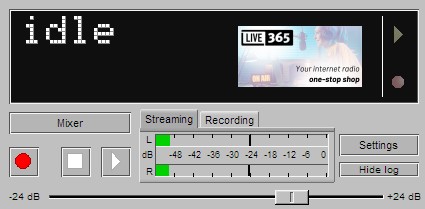
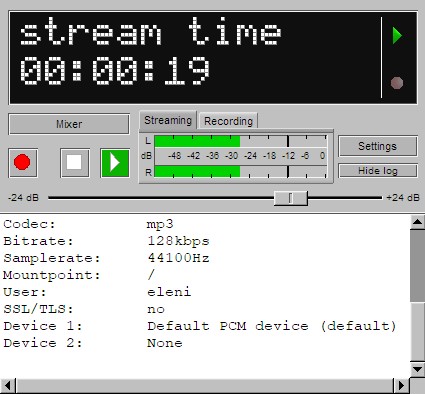
You know you're live when you see the stream time running and the audio bars moving!
If it is stuck on "connecting..." reach out to us for help<3